Organize the next seven days with these five free weekly to-do list templates for Word and Excel. Choose a day-by-day task list, an untimed weekly overview, or a time-block schedule for appointments and focused work.
The downloads include three Excel workbooks and two Word documents. Compare the descriptions below before choosing: some layouts list tasks by day, while others reserve time for activities.
Each file is supplied in a separate ZIP archive. Extract the archive and save a working copy before editing. No separate PDF versions are included, but you can export a reviewed copy from Word or Excel.
01. Weekly Overview with Longer-Term Planning Areas
Format: Excel (.xlsx).
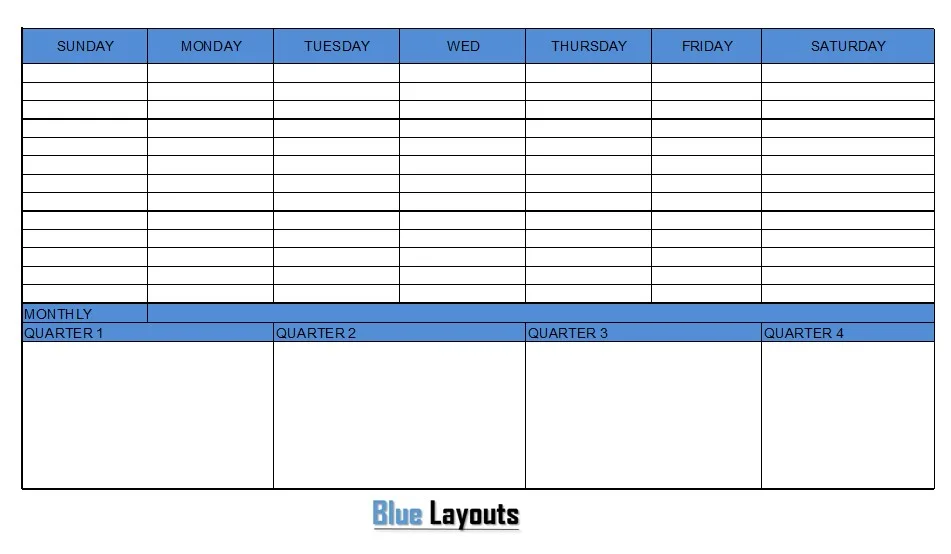
A Sunday-first weekly grid with additional areas labeled Monthly and Quarter 1 through Quarter 4.
Use and editing note: Choose this for brief daily actions alongside longer-term reminders. Add the week’s dates and clarify the purpose of the lower sections. The workbook has no formulas; the extra sheets do not provide additional populated planner designs.
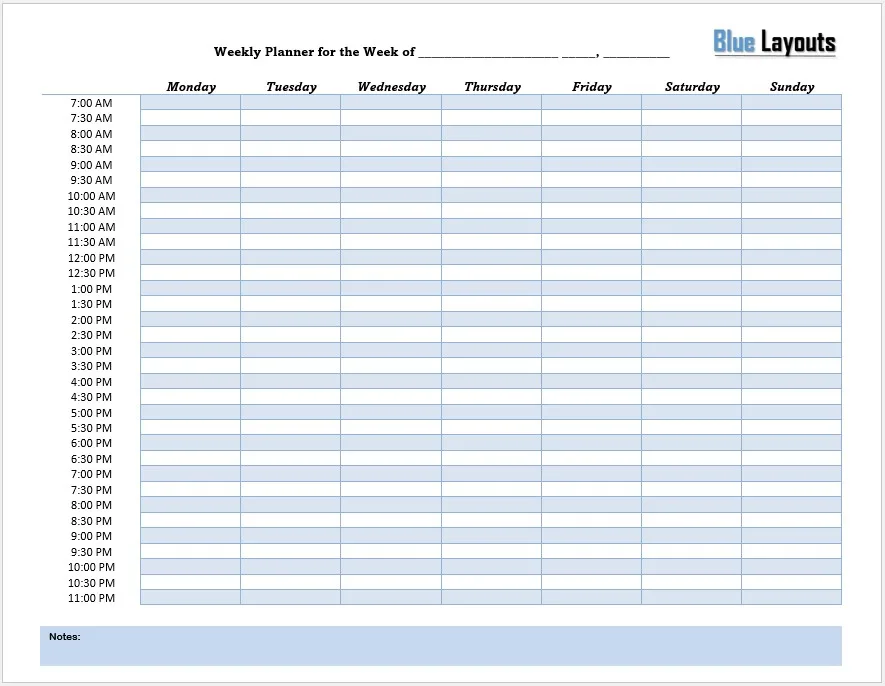
A Monday-to-Sunday schedule with a week-of field, half-hour labels from 7:00 AM through 11:00 PM, and notes space.
Use and editing note: Useful for appointments and planned work blocks. Enter dates manually and adapt the printed time labels if your day starts earlier or ends later.
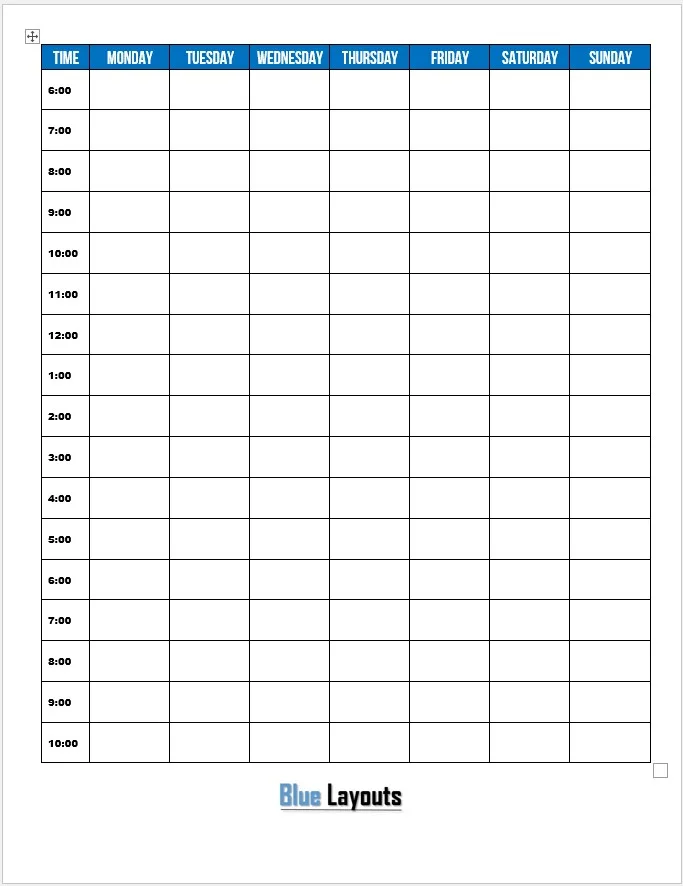
A Monday-to-Sunday grid with hourly labels beginning at 6:00 and continuing through 10:00 after the midday sequence.
Use and editing note: Use for an hourly overview. The labels do not explicitly distinguish AM and PM throughout; clarify them or replace them with a 24-hour sequence before use.
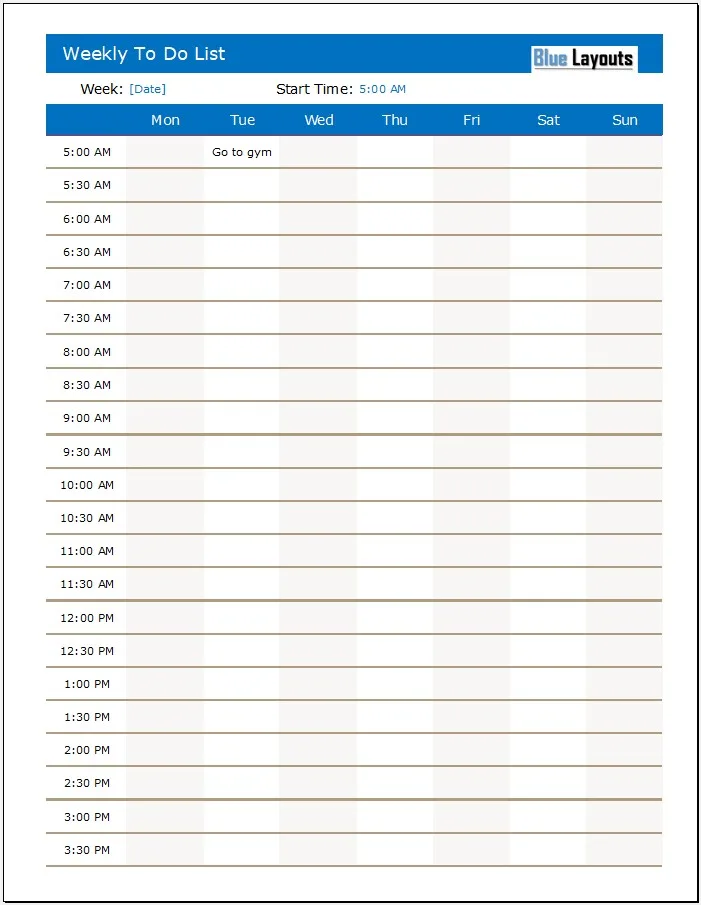
A Monday-first schedule with a week field, Start Time input, and 48 calculated half-hour time labels. The supplied start is 5:00 AM.
Use and editing note: Replace the sample “Go to gym” entry. The labels run from 5:00 AM through 4:30 AM the following day, so identify overnight entries clearly. It calculates time labels, not completion, reminders, or hours worked.
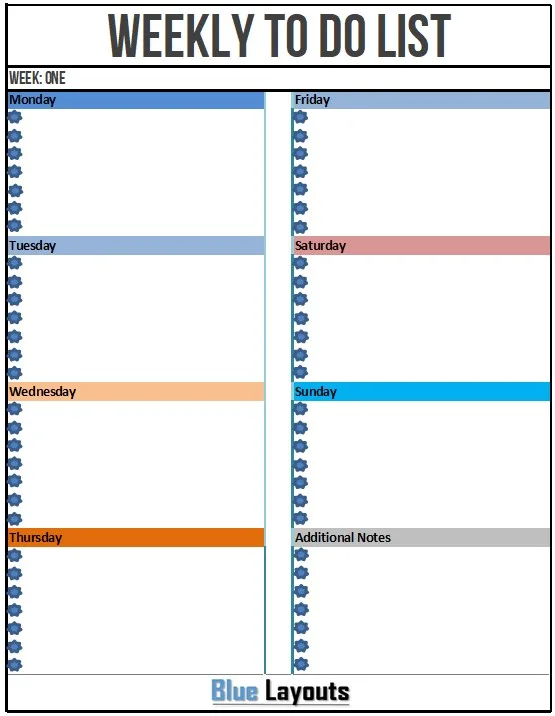
Separate areas for Monday through Sunday and an Additional Notes section, with a sample Week: One label.
Use and editing note: The simplest starting point for daily task lists without fixed time slots. Replace the week label with an actual date range. The workbook has no calculation formulas.
A to-do list identifies the actions you want to complete. A schedule assigns time to them. You can use both, but keep one clear record of task status so entries do not become conflicting copies.
How to Plan a Realistic Weekly To-Do List
1. Set the week and check existing commitments
Write the actual date range, not only a week number. Confirm whether your page starts on Sunday or Monday, then add fixed appointments, classes, deadlines, travel, and other commitments.
Review relevant dates from a quarterly planner before choosing this week’s work. Update any dated calendar grids in that separate template before relying on them.
2. Choose the outcomes that matter
Identify a manageable set of results for the week. Break them into specific actions such as “Draft the report introduction” or “Confirm the supplier delivery date” instead of broad headings such as “Report” or “Purchasing.”
Use an action plan when you need to connect work with a goal, responsible person, resources, and completion criteria. Bring only the actions relevant to the current week onto this page.
3. Assign work to days with enough capacity
Estimate the effort before filling a day. A task that needs several hours should not be treated like a quick phone call. Leave room for breaks, preparation, and unplanned work rather than filling every available space.
For time-block layouts, include a task’s full duration. If a 90-minute activity begins at 9:00, reserve the three corresponding half-hour blocks or clearly label 9:00–10:30.
4. Mark status consistently
Use a simple convention such as Done, In progress, Waiting, and Rescheduled. Add a status column or mark when the selected design does not provide one. Do not assume a blank cell is an interactive checkbox.
The files do not provide an automatic completion dashboard, notification system, or task synchronization. A manually entered checkmark records your update; it does not trigger another action.
5. Review and adjust during the week
Check the plan when priorities change. Move a task deliberately and retain a useful note about a blocker or dependency. At the end of the week, decide what still deserves attention rather than automatically carrying every unfinished item forward.
A daily planner can hold more detail for a busy day. Keep the weekly page as the overview rather than copying all notes into both places.
Using the Start-Time Excel Schedule
In Template 04, F3 holds the starting time. The first label in B5 refers to that input, and subsequent labels add 30 minutes. Enter a valid Excel time such as 7:00 AM and check the resulting sequence.
The workbook defines an Interval name, but the supplied label formulas add a fixed TIME(0,30,0). Changing an interval-related cell alone does not change that spacing. To use another interval, revise and test the actual formulas.
There are 48 labels, with 47 half-hour steps between the first and last. The final label is therefore 23 hours 30 minutes after the starting label. If your schedule crosses midnight, make the date boundary clear; a time displayed without a date does not identify which day it belongs to.
Changing the start time changes the labels, not the meaning or position of existing activities. Review and reposition entries after changing the time grid.
Weekly Task Planning Example
This fictional example shows a report project broken into daily actions. Other responsibilities and fixed appointments would be added separately.
Illustrative weekly actions
Day
Action
Completion check
Monday
Confirm the report scope and gather source files.
Scope confirmed; files available.
Tuesday
Prepare the outline and draft the introduction.
Outline and introduction saved for review.
Wednesday
Draft the findings and check the supporting figures.
Draft complete; unresolved figures flagged.
Thursday
Request and review feedback.
Comments recorded with any follow-up owner.
Friday
Revise and send the agreed version.
Final version sent to the intended recipient.
Weekend
Keep available for personal plans or a deliberate review.
Do not treat spare space as a requirement to add work.
The completion-check column is an optional addition. For several linked projects, use a separate project to-do list for the wider task record and select this week’s actions from it.
Editing and Printing Tips
Keep a blank master and save a new copy for each date range.
Review the week-start order and clarify ambiguous time labels.
Extend rows carefully and preserve Template 04’s time formulas.
Check wrapping, writing space, margins, and page breaks.
Review print areas after adding content; Template 01 and Template 05 have predefined ranges.
Inspect a test print or exported PDF before making multiple copies.
Frequently Asked Questions
How many templates are available here?
Five verified downloads: three Excel .xlsx workbooks and two Word .docx documents.
Are these weekly checklists or schedules?
The collection includes both. Template 05 provides day-based task areas, while Templates 02–04 emphasize time-based planning.
Do the files calculate task progress?
No. Template 04 calculates time labels, but the collection does not automatically calculate completion or send reminders.
Can I change the time range?
In Template 04, change the start-time input and verify the labels. In the Word schedules, edit the labels manually. Check all planned entries after changing the grid.
Can I use Google Docs or Google Sheets?
You can try importing the Word files into Docs and the Excel files into Sheets. Check layout, time formatting, formulas, and print settings after import.
Are PDF versions included?
No separate PDFs are supplied. Export a reviewed copy from your document or spreadsheet application.



Pingback: Free Weekly Schedule Template for Word - Editable & Printable