Looking for Avery label templates for Word? Start by checking the product number on your label packaging. A template must match the sheet’s label dimensions, spacing and margins—not just look similar on screen.
Below are six downloadable Word label layouts for editing recipient and sender details. These files are set to A4, and a matching Avery product number has not been verified. Use them as customizable label designs and test their fit before printing on adhesive sheets. If you already have Avery stock, use the product-specific template linked below for a more reliable starting point.
Find the template or product code on your pack and look it up in the official Avery template directory. Check the regional product details too: an A4 label sheet and a US Letter label sheet require different layouts.
For example, the official Avery 5160 template is for 30 address labels per sheet, each measuring 1 inch by 2⅝ inches. That specification does not establish compatibility with the six A4 files on this page.
What to compare
Why it matters
Product number
Identifies the manufacturer’s intended template and compatible products.
Sheet size
A4 is 210 × 297 mm; US Letter is 8.5 × 11 inches. Changing paper size alone does not rebuild label positions.
Label width and height
Sets the printable area for each address or design.
Rows, columns and pitch
Pitch is the distance from the start of one label to the start of the next. It includes any gap.
Top and side margins
Position the entire layout on the sheet.
Printer compatibility
Inkjet or laser suitability depends on the label stock, not the Word design.
Download six editable Word label layouts
Each ZIP contains a DOCX file. Extract the document and edit it in Microsoft Word. Other compatible applications may move text or objects, so inspect the result before printing. These files contain repeated address placeholders; no automated address-list connection has been verified.
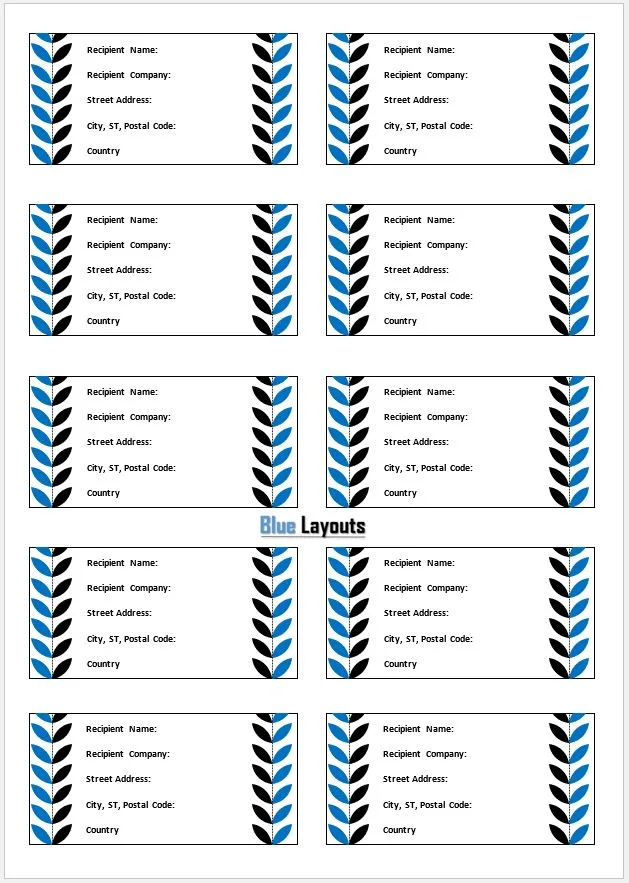
01. Recipient and Company Address Layout
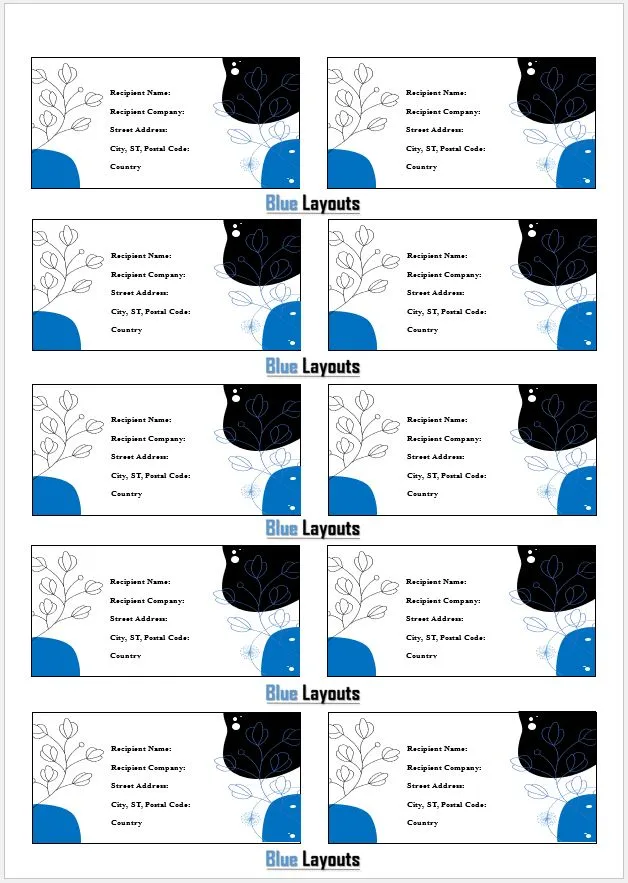
Includes repeated fields for recipient name, company, street address, city, state or region, postal code and country. Use this option when the company or country line is useful for your mailing.
Check before printing: Replace the field labels with the actual address. Remove unused lines only after checking whether the remaining text still sits correctly inside each label.
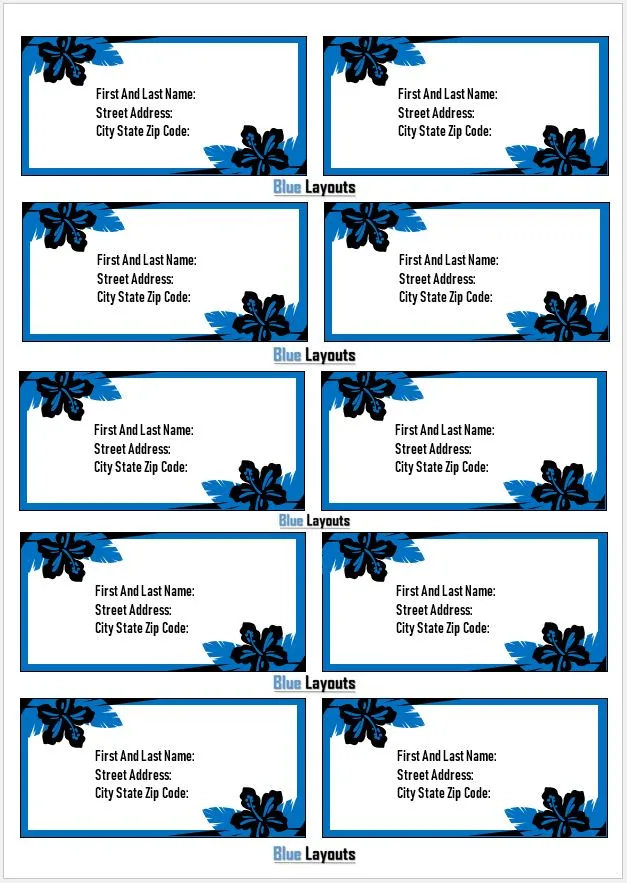
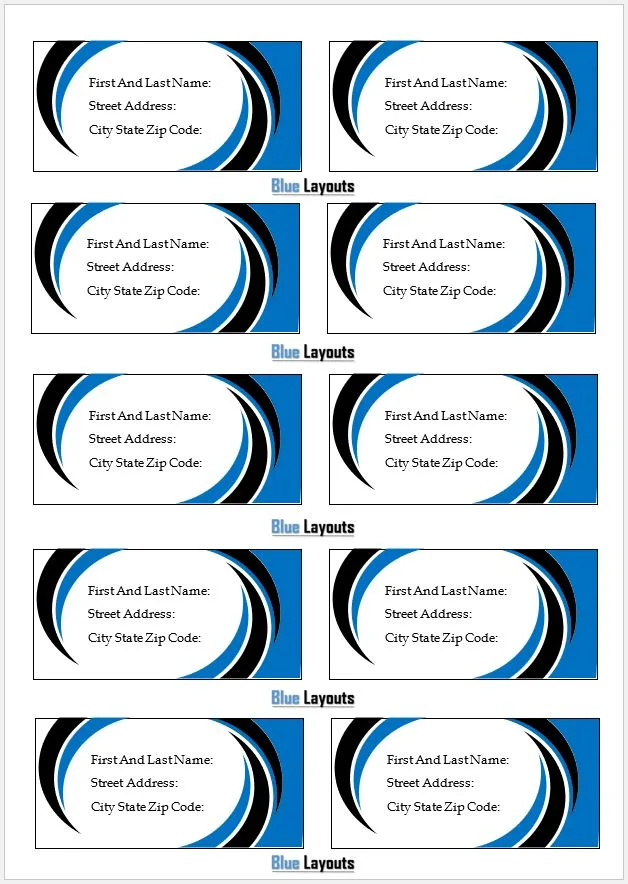
Contains repeated first-and-last-name, street-address and city/state/ZIP placeholders for a shorter address block.
Check before printing: This file has substantially wider side margins than the other downloads. Check the actual placement in Word rather than assuming it shares their layout.
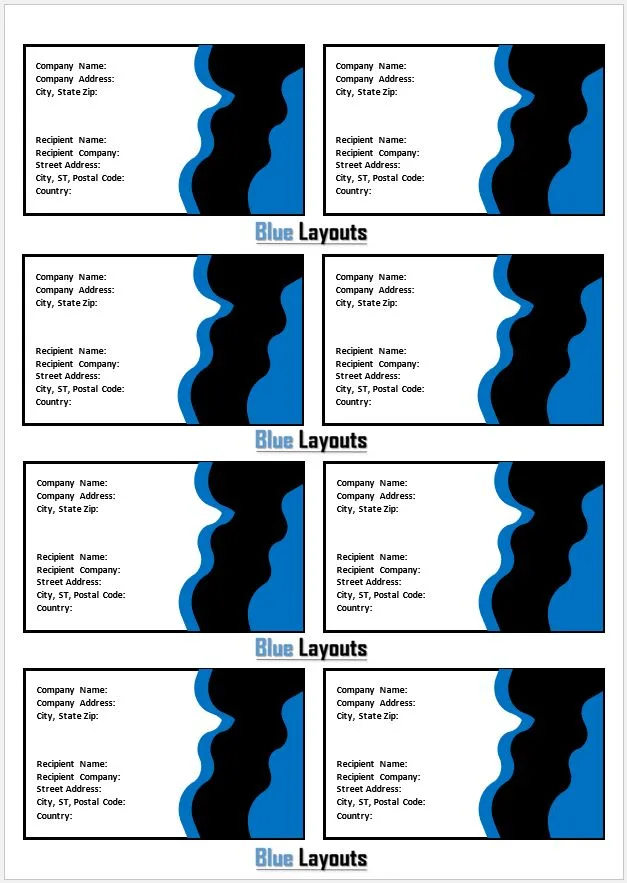
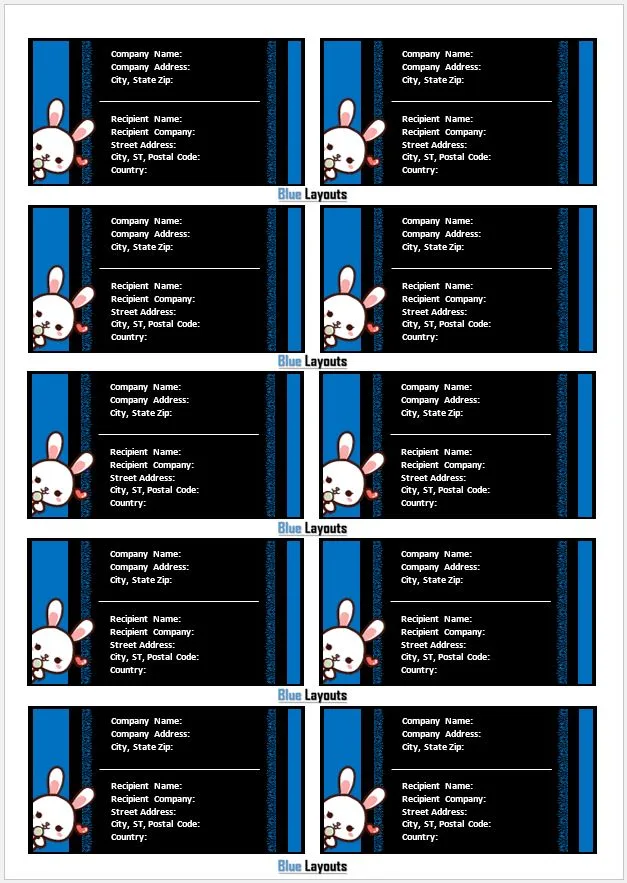
Provides company name and company address fields alongside recipient name, company, street address and destination details.
Check before printing: Keep the sender and recipient visually distinct. Remove stray punctuation and confirm which address is intended as the delivery destination.
Another layout with sender-company and recipient-address placeholders. Compare its preview and editable document with Template 03 to choose a suitable arrangement.
Check before printing: The presence of sender details does not make this a carrier-approved shipping label. It does not replace postage, tracking or a required carrier barcode.
Uses first-and-last-name, street-address and city/state/ZIP fields. It offers another design to compare with Template 02 when you need a compact address block.
Check before printing: A matching set of text fields does not prove matching label positions. Test this file against your own sheet independently.
Includes recipient name, company, street address, city/state/postal code and country fields, offering another design to compare with Template 01.
Check before printing: Check the longest real address you expect to use. Avoid shrinking text until it becomes difficult to read just to preserve the sample layout.
Save a working copy. Keep the original file so you can return to its starting layout.
Confirm the paper and label geometry. Compare the document with your label stock before investing time in the design. Use the manufacturer’s template if the geometry differs.
Replace the sample address. Enter the recipient’s details, including apartment or unit information where needed. Use the destination’s postal addressing conventions.
Keep the design readable. Use a clear font and strong contrast. Leave space between text and the cut edge.
Handle repeated labels deliberately. For a sheet of identical return addresses, repeat the same block. For separate recipients, enter each address or build a mail merge using an appropriate product-specific template.
Preview every page. Look for clipped lines, overlapping objects and labels that have shifted after editing.
For business correspondence, pair the mailing design with a sample letterhead template. Keep company names and contact details consistent across both documents.
Example: organize a recipient address
This fictional address shows the information to enter in a recipient block. The field prompts in the template are editing instructions; they do not need to appear on the finished label.
Alex Morgan Example Company 125 Sample Street, Suite 4 Example City, Region, Postal Code Destination Country
Replace every line with verified delivery information. For domestic mail, include or omit the country line according to the postal service’s requirements. Keep a return address separate from the delivery address where the design includes both.
Set the document and printer to the intended sheet size. The downloads above are configured for A4.
Select 100% or Actual Size where available. Turn off options that resize the page to fit a printable area.
Print one page on plain paper. Hold it against an unused label sheet with a light behind it.
Compare the top, middle and bottom positions—not just the first label.
If the fit is correct, use compatible label stock and the feed method and media setting recommended for your printer and that stock.
Printing problem
What to check first
Everything is offset by roughly the same amount
Sheet orientation, starting margins and printer feed position.
The first labels align but later labels drift
Scaling, paper-size mismatch and row or column pitch. A single margin adjustment may not resolve it.
Words are clipped or move after editing
Text wrapping, object dimensions, font substitution and address length.
The plain-paper test works but label sheets shift
Printer media settings, tray guidance and stock compatibility.
Related templates for mailing and organization
Use a shipping order template to record dispatch instructions separately from the address label. For equipment identification, put a short asset ID on a suitable label and maintain the full details in an equipment inventory log. A label identifies the item; the log holds its history and location.
Frequently asked questions
Are these official Avery templates?
These are label files hosted by BlueLayouts. Their filenames do not establish that Avery created or approved them, and no matching Avery product code has been verified. Use Avery’s official directory when you need a template tied to a particular product number.
Can I use these files with Avery 5160 or 8160 labels?
Compatibility has not been established. The six files are set to A4. Avery lists 5160 as a 30-per-sheet, 1-by-2⅝-inch format and lists 8160 among compatible template numbers. Use the official 5160 template for those products rather than assuming an A4 design will fit.
Can I change an A4 document to Letter size?
You can change the page setting, but that alone does not align its label positions with Letter stock. Start with the correct product-specific template and transfer your text or artwork into it.
Can I print different addresses on one sheet?
Yes, by editing the address blocks individually. For a longer list, use Word’s label mail merge with a matching label definition and a checked address data source. These downloads have not been verified as preconfigured mail merge documents.
Can I use these as postage or courier labels?
They can provide an address design if it fits your stock and mailing requirements. They do not generate paid postage, tracking numbers or carrier barcodes. Obtain any required shipping label from your postal or courier service.
Avery is a trademark of its respective owner. Product references help readers locate compatible manufacturer templates; they do not imply endorsement of these downloads.