Create a business handout with this free tri-fold brochure template for Word. The blue-and-charcoal design combines a front-cover area, an About Us section, short numbered lists, and space for contact details. Replace the sample text with a focused introduction to your business, services, or campaign.
Download format: ZIP containing one Microsoft Word (.docx) file. Page setup: A4 landscape. Design: blue, charcoal, and white with three vertical panels.
What is included: a one-page, three-panel starting layout. A complete double-sided brochure has six panels, so you will need to create a reverse-side layout if you want content on both sides.
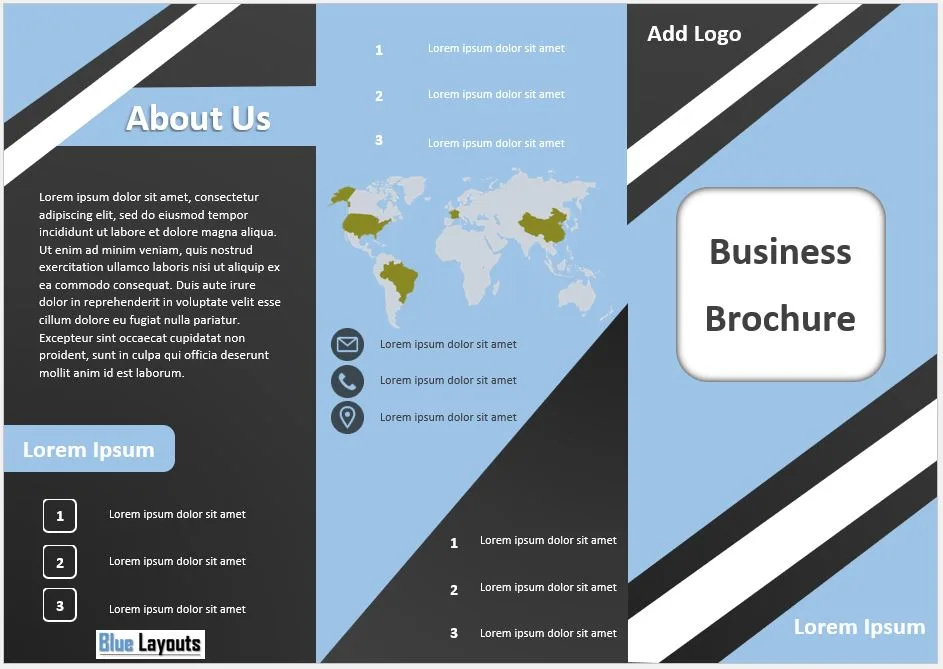
Brochure Template Preview
The preview shows the supplied side of the brochure. The title, logo prompt, contact placeholders, and sample paragraphs need to be replaced before use.
What Is a Tri-Fold Brochure?
A tri-fold brochure uses two folds to divide a sheet into three sections. When both sides are printed, those sections create six readable panels. This gives you space for a cover, a brief introduction, supporting details, and contact information in a compact handout.
This download supplies three panels on one side. You can use it as a single-sided folded handout, or develop a matching second page for a double-sided brochure. Decide how the sheet will fold before placing the remaining content.
What You Can Customize
Cover title: replace “Business Brochure” with your organization, service, or campaign name.
Logo area: replace the “Add Logo” prompt with your logo and check that it remains clear at print size.
About Us section: introduce who you help, what you offer, and why the reader should consider you.
Numbered lists: use these for service highlights, benefits, or a short process.
Contact information: replace sample text near the contact icons with current details.
Colors and graphics: adapt the design to your brand while keeping sufficient contrast for readable text.
The template uses positioned design elements rather than a plain text document. Keep replacement copy concise so it fits the existing areas. Use a separate business card template when you want a smaller contact handout to accompany the brochure.
Plan Your Brochure Content Before Editing
Start with one audience and one main action. A service brochure might ask the reader to request a quote, while an event handout might ask them to register. Give each panel a clear purpose instead of repeating the same introduction throughout.
Panel purpose
Suggested content
Writing tip
Front cover
Name, short promise, and a relevant visual
Make the topic understandable at a glance
Introductory or flap panel
The reader’s need and your proposed solution
Give a reason to open the brochure
Three inside panels
Services, benefits, process, or supporting details
Use short sections with descriptive headings
Back or contact panel
Contact details and a clear next step
State how to call, visit, book, or enquire
This is a planning guide for a complete six-panel brochure, not a description of six panels included in the file. Confirm the physical panel order with a folded paper mock-up before building the second side.
How to Edit the Brochure in Microsoft Word
Extract the ZIP file. Save the Word document to a working folder and keep an unchanged copy for future use.
Review the page setup. The supplied layout is A4 landscape. If you need US Letter or another size, adjust the page and reposition the elements rather than assuming everything will fit automatically.
Replace the cover text and logo prompt. Use a short title and a logo that fits without distortion.
Edit every sample text area. Replace the Lorem ipsum copy, numbered-list placeholders, and contact text. Word’s Selection Pane can help you locate overlapping objects.
Review the graphics. Keep the map only if it suits your message; otherwise replace it with a relevant image or simpler design element.
Add the reverse side if needed. Create a second landscape page and plan three matching content panels. Check the fold direction before choosing where each section goes.
Proofread and export. Review the document at its intended print size, then export a PDF for a more consistent printing layout.
Keep your business name, website, and contact details consistent with your company letterhead. Check phone numbers and URLs carefully before ordering printed copies.
Printing and Folding Checks
Print one draft before producing a batch. Label the panels on a scrap sheet, fold it as intended, and compare it with your design. This reveals a misplaced cover, an upside-down reverse side, or text that disappears into a fold.
Check the paper size: use A4 for the original page setup, or review the whole design after changing the size.
Allow space near folds: keep text, logos, and important details away from fold lines.
Confirm the fold style: a roll fold may need a slightly narrower tuck-in panel. Do not assume three equal panels will suit every printer’s finishing process.
Test double-sided printing: the correct flip setting depends on the printer and page orientation. Print and fold a sample to confirm alignment.
Check edge printing: the background reaches toward the sheet edges, but an office printer may leave white margins. Ask a commercial printer about its required bleed, trim, and safe areas.
Review image quality: inspect the exported PDF for blurry logos, stretched images, and small text.
The download is a Word starting layout, not a verified press-ready production file. If a printer provides its own panel measurements or artwork template, use those specifications when preparing the final design.
Plan the Brochure as Part of Your Campaign
Estimate design, printing, and distribution costs before deciding how many copies to produce. Our quarterly marketing budget template can help you organize those costs alongside other promotional activities. Browse the marketing templates for related planning documents.
Frequently Asked Questions
What file format is included?
The ZIP contains a Microsoft Word .docx file. Extract it before editing. It is not an InDesign, Canva, or fillable PDF template.
Does the template include both sides of the brochure?
No. It supplies one landscape page with three designed panels. Add a second side if you need a complete six-panel brochure.
Can I change the colors and add my own images?
Yes, you can customize the Word layout. Some artwork may be a picture rather than an individually recolorable shape, so replace an image when its built-in colors do not suit your design.
Can I use the template on US Letter paper?
The original document is set to A4 landscape. You can adapt it to US Letter, but the page proportions differ. Check object positions, text wrapping, margins, and panel widths after changing the paper size.
Why does my printed brochure have white edges?
Many office printers cannot print to the paper edge. Use the printer’s supported borderless settings if available, accept a white margin, or arrange a commercial print with the required bleed and trimming setup.
How much text should I put in each panel?
Use a short heading and only the details needed for that panel’s purpose. If the copy requires very small type, shorten it or move additional information to a linked web page. A test print is the best way to judge readability at the finished size.



Pingback: Free Business Card Template for Word | BlueLayouts
Pingback: 6 Free Newsletter Templates for Word | Editable & Printable