Download 10 free printable grade book templates for Excel to organize assignment scores, review course results, or prepare student progress summaries. The collection includes class gradebooks, individual course trackers, a symbol-based exam scoring example, and GPA worksheets.
All 10 downloads contain Excel workbooks, not Word documents. Choose the structure that fits your purpose, then set the assignment names, scoring rules, and grading scale before entering actual records. You can work in Excel or print selected sheets for handwritten entries.
Format: Each ZIP archive contains an Excel (.xlsx) workbook. Extract your selected file and save a working copy. The workbooks use different formulas and grading assumptions; review their instructions and check a few known examples before relying on calculated results.
01. Assignment Points Grade Sheet
Contains homework and midterm examples, with additional worksheet tabs for labs and other work. The homework sheet includes individual problem scores, totals, percentages, and class statistics. Its sample total uses a specific score range; expand the formulas when adding assignments rather than assuming new columns are included automatically.
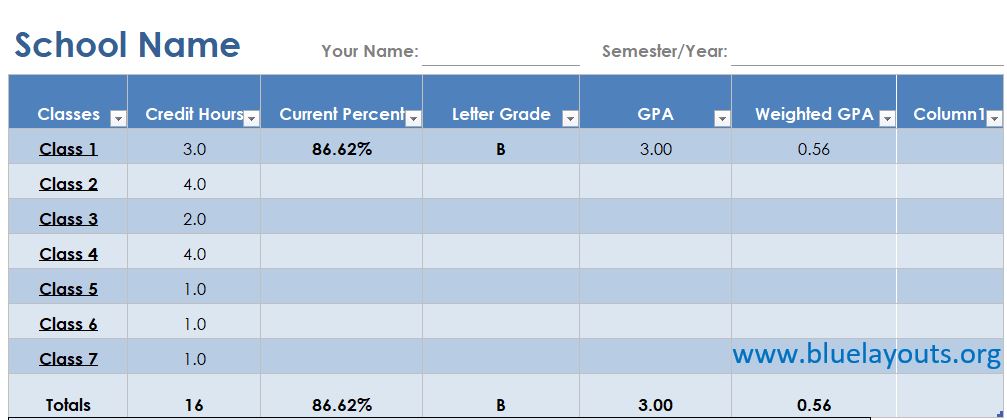
A student-oriented workbook with seven class sheets, a summary, credit hours, and a grade/GPA lookup table. It helps organize one student’s results across courses. Review the category settings, grade scale, credit weights, and treatment of courses with no grades before interpreting the summary.
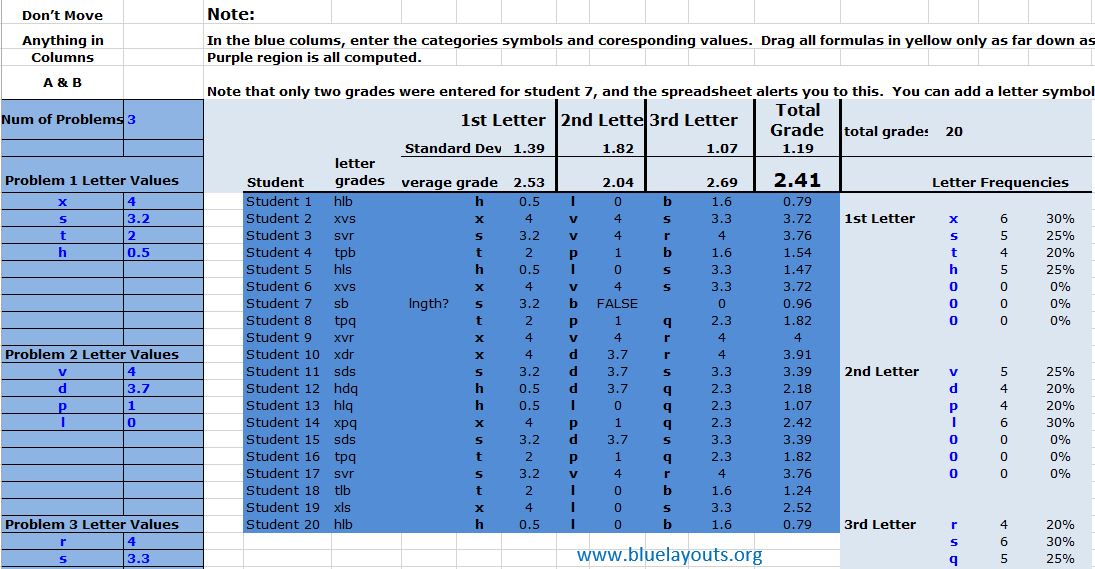
Includes Entering Grades and Computations sheets. The example enters one symbol per exam problem and converts those symbols through defined values and problem weights. Choose it only when that scoring method fits the assessment, and check the expected number of symbols for each student.
04. Student Course Summary and Attendance Workbook
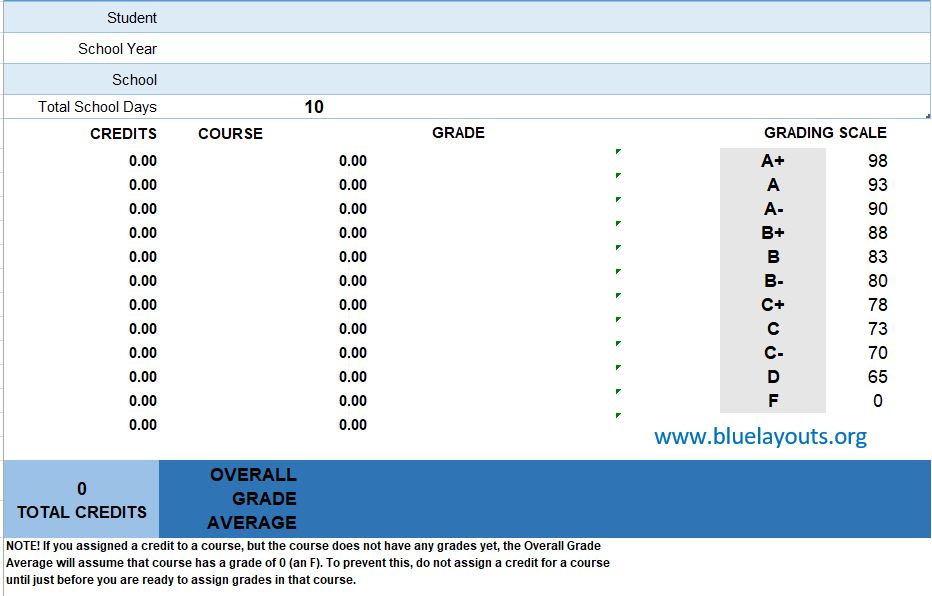
Combines a student summary, attendance record, and multiple course sheets with credits and a grading scale. It is suited to organizing an individual student’s course records rather than a single class roster. Review the included instructions before changing linked worksheets or calculating the overall result.
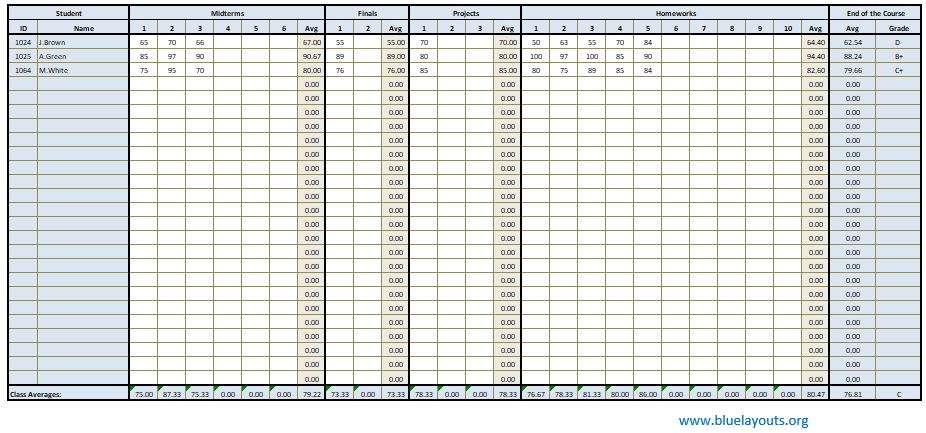
A class roster with sections for midterms, finals, projects, and homework, category averages, an end-of-course average, and a letter grade. Setup information is held on the Readme sheet. Check category weights and grade thresholds, and replace sample students and scores before use.
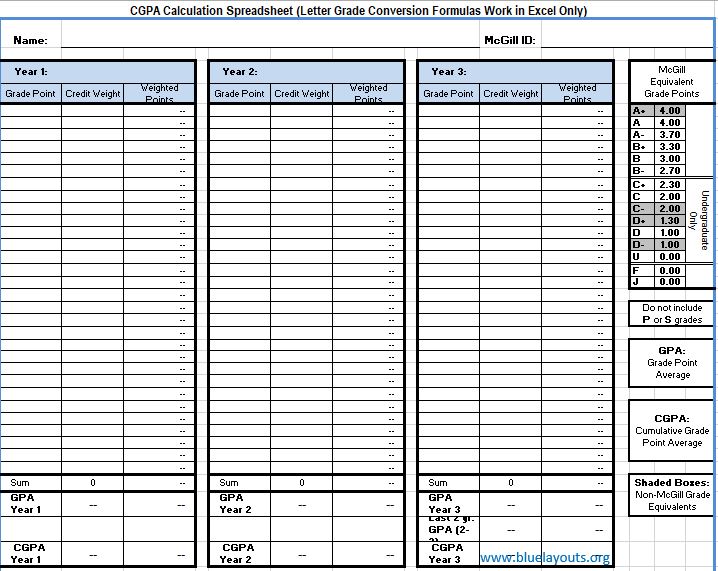
A specialized worksheet with grade points, credit weights, weighted points, and year-by-year sections. It contains McGill-labeled fields and an equivalent-grade table. Use the conversion and inclusion rules appropriate to your institution; this is a GPA worksheet rather than an assignment gradebook.
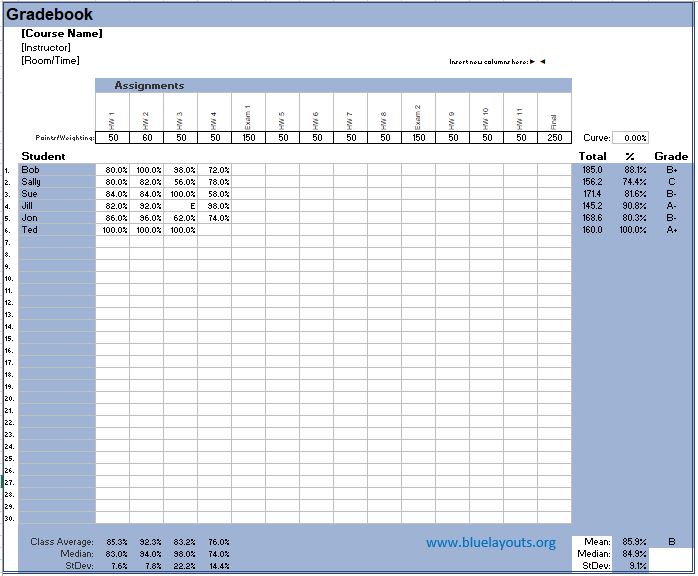
07. Class Gradebook with Percentage Entries and Assignment Weights
Includes Gradebook, Names, and Grades sheets, plus a credit sheet. The example uses assignment percentages with points or weights and an exempt-entry convention. Follow its input instructions, review the grading scale, and test zeros, blanks, and exempt work before recording the class.
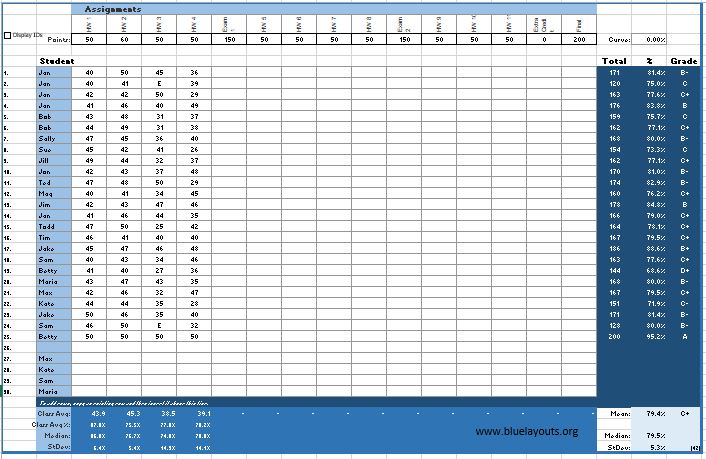
A wide assignment sheet with student rows, point values, extra credit, totals, percentages, and grades. It can also serve as a printable recording grid. For calculated use, review the percentage formulas: the sample refers to row 8 rather than the visible points row, and some formulas reference another workbook. Rebuild or reconnect those references for your own setup.
09. Period Gradebook with Printable Student Summaries
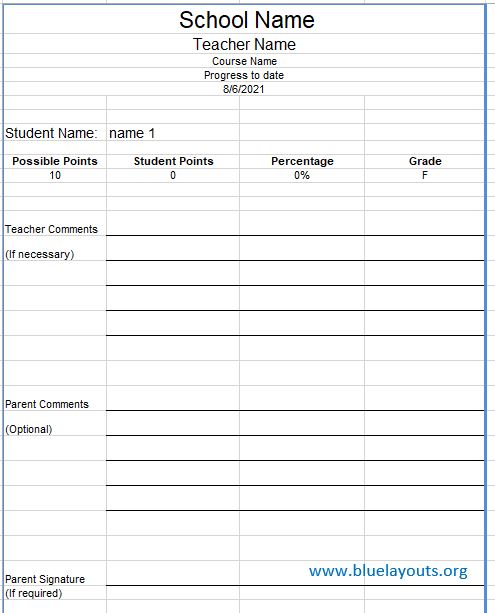
Contains three period grade sheets and corresponding student-summary sheets. The summaries show possible points, student points, percentage, grade, teacher comments, parent comments, and a signature area. Review the grading boundaries and possible-points totals before distributing individual summaries.
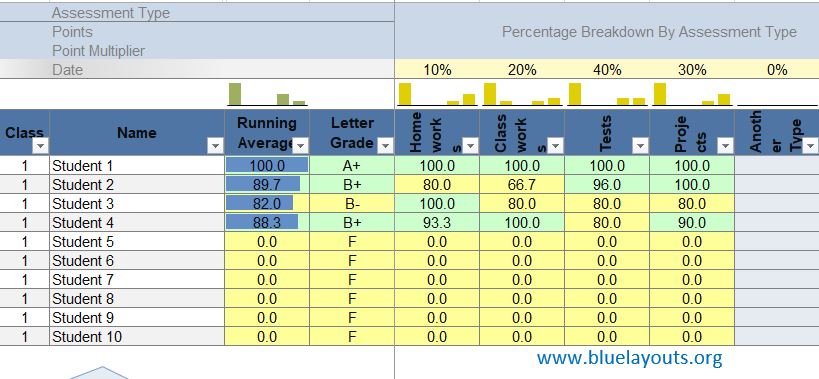
Includes Data Entry, options, exploration, printouts, and absence sheets. It groups results by assessment type and uses category weights, point values, and grade settings. Review the sample data, table formulas, and options before adapting it to the course.
01, 05, 07, or 10, depending on the scoring method.
One student’s results across courses
02 or 04.
Exam problems assessed using category symbols
03.
Credit-weighted GPA planning
06, after reviewing the institution-specific scale.
Individual progress sheets with comments
09.
A points grid for handwritten entries
Print selected columns from a class layout, such as 08.
Gradebook, Progress Report, and GPA Tracker
A teacher’s gradebook records assessment results for students in a class. A progress report summarizes a student’s results at a particular point. A GPA tracker combines course-level grades using a defined conversion and credit system. The worksheets serve different purposes, so choose by the fields and method rather than the filename alone.
A gradebook records scores; it does not define what good performance looks like. Use an assignment-specific grading rubric to explain assessment criteria, then enter the resulting scores using the gradebook’s agreed method.
How to Set Up a Gradebook in Excel
Identify the course and period. Replace sample school, teacher, course, year, and term details. Decide whether the workbook covers one class, one student, or several reporting periods.
Prepare the roster. Replace all sample names and identifiers. Check that linked summary sheets show the intended student after any row changes.
List the assessments. Use names or references that match the instructions students receive. Include possible points, dates, and categories where the workbook requires them.
Set the calculation method. Decide whether the course uses total points, weighted categories, another approved method, or a combination. Confirm that the workbook implements that method.
Review the grading scale. Enter the approved thresholds and check results exactly at each boundary. A sample letter-grade or GPA table is not a universal scale.
Define entry conventions. Specify the meaning of blank, zero, exempt, not yet assessed, and missing work. Use only codes supported by the workbook’s formulas or adapt the formulas deliberately.
Check known examples. Compare calculated results with a manual calculation before entering a full roster. Recheck after adding columns, changing weights, or moving sheets.
Keep assessment names and deadlines consistent with the course syllabus schedule. Maintain the published grading method in the appropriate course information so students can understand how recorded scores contribute to a result.
Points-Based and Weighted Grade Examples
These fictional examples illustrate two different methods. Use the method approved for your course.
Total-points example
Assessment
Points earned
Points possible
Quiz
18
20
Assignment
36
40
Test
42
50
Total
96
110
Result: 96 ÷ 110 × 100 = 87.27%, rounded to two decimal places. This method weights each assessment according to its possible points. Averaging the three percentages directly would give a different result.
Weighted-category example
If homework has a category score of 90% and a 30% weight, while tests have a category score of 80% and a 70% weight, the combined result is (90 × 0.30) + (80 × 0.70) = 83%. The category weights total 100%.
Keep scores and weights distinct. Also confirm whether an input cell expects 90, 90%, or 0.90. A percentage-entry workbook and a raw-points workbook may use different input conventions.
Handling Blank, Zero, and Exempt Entries
A blank can mean work is not yet assessed, while zero is a numeric score. An exempt entry can mean an assessment is excluded from a student’s denominator. Those meanings must match both the course rules and the workbook’s formulas.
Excel’s AVERAGE generally ignores blank cells and includes numeric zeros, but a workbook may use additional logic. Template 07, for example, has an exempt convention and formulas that display a blank result when the sum of entered scores is zero. Check an all-zero test case so a blank display is not mistaken for no recorded work.
Decide how to handle resubmissions, extra credit, and incomplete assessments before recording them. Keep a brief reference explaining any approved codes beside the working sheet.
Printing and Reviewing Grade Records
Select the sheet and range you intend to print rather than printing every worksheet.
Use landscape orientation for wide class grids when appropriate.
Repeat column headings and keep student identifiers visible across pages.
Avoid reducing a large sheet to unreadably small text just to fit one page.
Inspect individual summaries to confirm the correct student and reporting period.
Keep completed records in the school’s designated location and share only the intended student’s report with the intended recipient.
Use recorded assessment evidence to inform your next lesson plan. A score can identify a topic to revisit; the student’s work and feedback provide the detail needed to plan the follow-up.
Frequently Asked Questions
Are these grade book templates for Word or Excel?
All 10 downloads contain Excel XLSX workbooks. They can be edited in Excel and printed as grade-recording sheets. Separate Word files are not included.
Do the workbooks calculate grades?
They contain formulas, but the methods vary. Check the input format, grading scale, weights, and formula ranges in the workbook you select. Template 08 needs its references adapted before calculated use.
Can I use a template as a blank printable gradebook?
Yes. Prepare a copy with the roster and assignment headings you need, clear sample scores from input cells, and print the selected range. Keep the original workbook available so you do not accidentally remove formulas from the editable master.
Which workbook includes printable student summaries?
Template 09 has period-linked student summary sheets with score information, teacher and parent comments, and a parent-signature area.
Can I use the GPA worksheet for any institution?
Review the conversion table, credit rules, and treatment of repeated or excluded courses against the institution’s method. The sample in Template 06 includes McGill-specific labels and should not be assumed to represent another institution’s GPA calculation.
Can I open these files in another spreadsheet application?
You can try importing an XLSX file, but check formulas, named ranges, tables, charts, and print layout in the application you use. Verify known results again after conversion.



Pingback: Free Printable Grading Rubric Samples - Blue Layouts