Create a consistent home for your organization’s updates with these free newsletter templates for Word. Use them to share company news, school announcements, club activities or community updates without designing every issue from scratch.
The collection includes six editable .docx documents, each supplied in a ZIP file. Customize the headlines, articles and pictures, then print your newsletter or export it to PDF for sharing. These are page-layout documents rather than responsive HTML email templates.
Browse the six designs | Plan your content | Editing and printing tips
Free Editable Newsletter Templates for Word
Each preview shows the original layout with sample pictures and placeholder text. Download and extract the ZIP file, then open the enclosed document in Microsoft Word. Choose according to how much text and photography your issue needs.
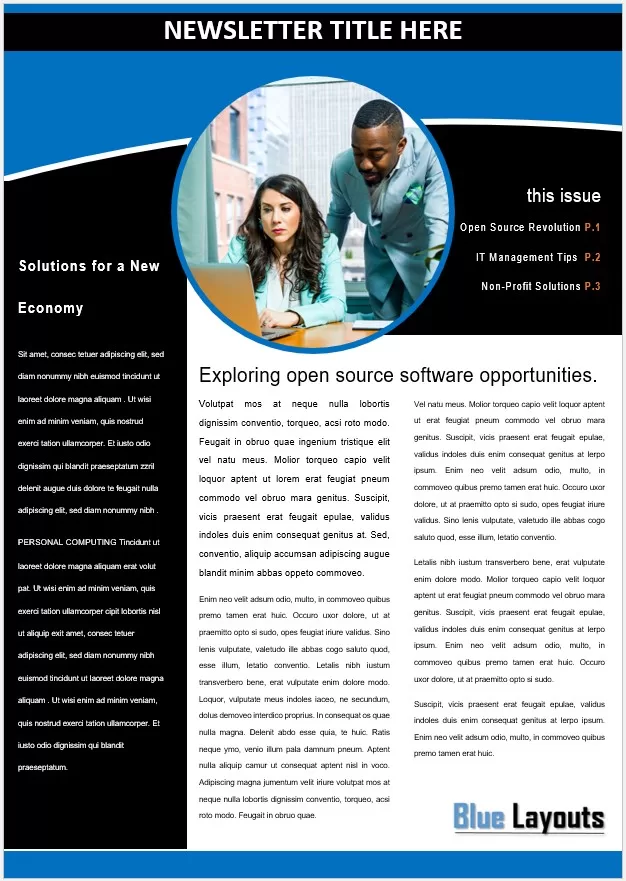
01. Blue and Black Newsletter with Sidebar
A circular feature photo sits above a two-column article, with a contrasting left sidebar and an issue contents area.
Useful for: A longer lead story supported by short notices or a contents list. Keep sidebar entries brief so the main article remains easy to scan.
Format: Word (.docx), inside a ZIP file.
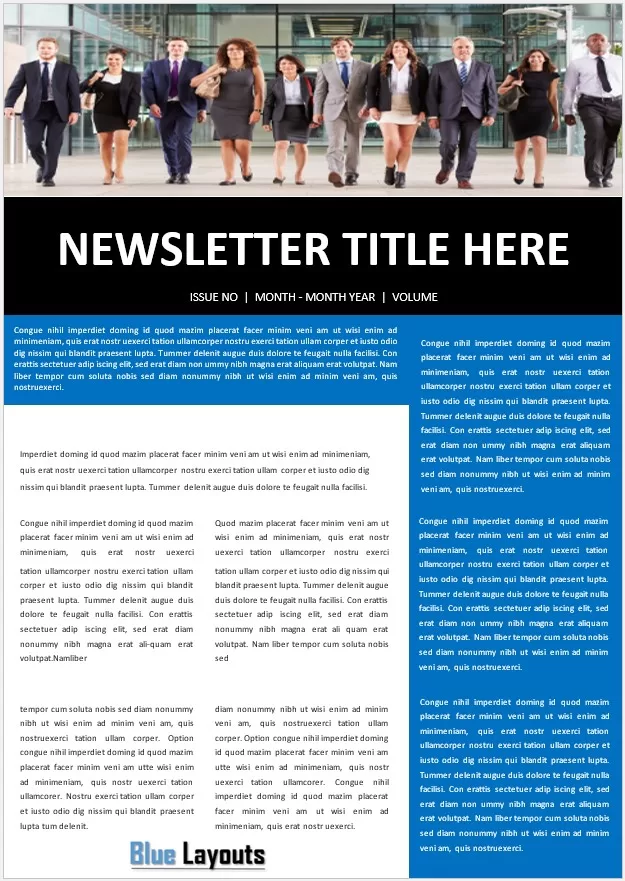
02. Photo Banner Company Newsletter
A wide team photograph, a large title band and issue details lead into a white article area with a blue right sidebar.
Useful for: Company or association updates that combine a main story with recurring notices. Replace the banner image with one that suits your audience.
Format: Word (.docx), inside a ZIP file.
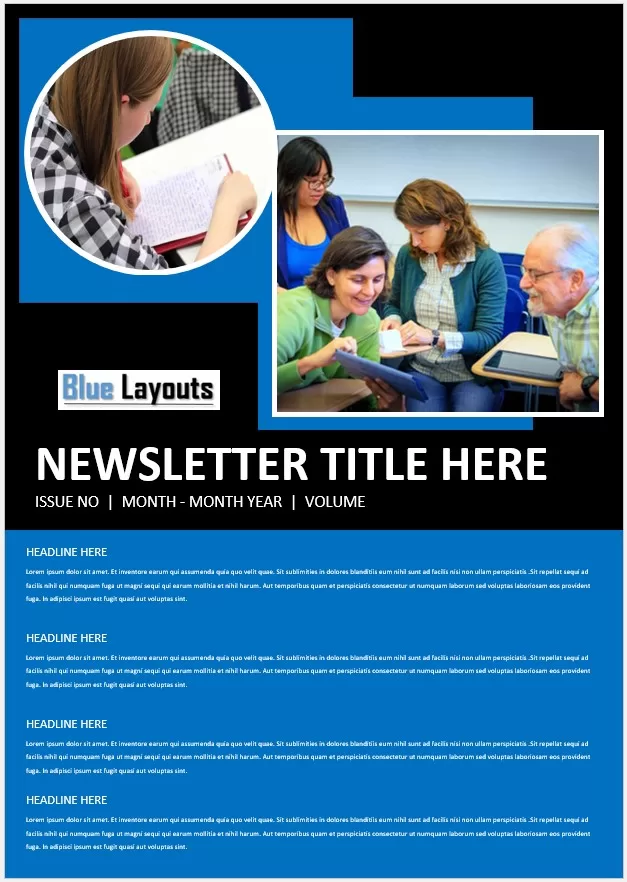
03. Photo-Led School or Training Newsletter
Two overlapping photo areas sit above the title, issue information and a stack of short headline sections on a blue background.
Useful for: School, learning group or training updates with several brief stories. Limit each item to its most useful details and check the small body text at actual print size.
Format: Word (.docx), inside a ZIP file.
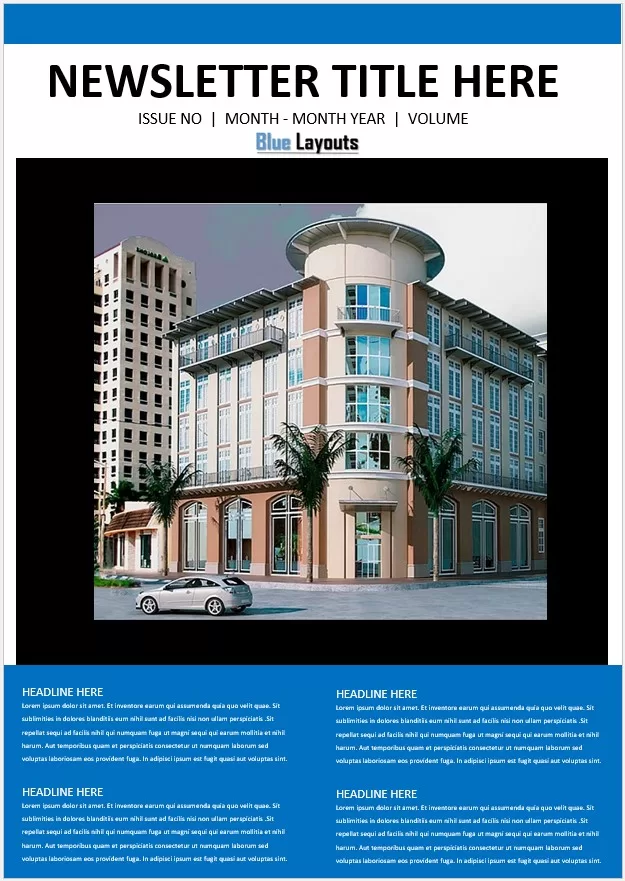
04. Large Feature Image Newsletter
A centered title and issue line lead into a large image panel, followed by four short content blocks in two columns.
Useful for: A facilities update, project milestone or community story where one photograph carries the main message.
Format: Word (.docx), inside a ZIP file.
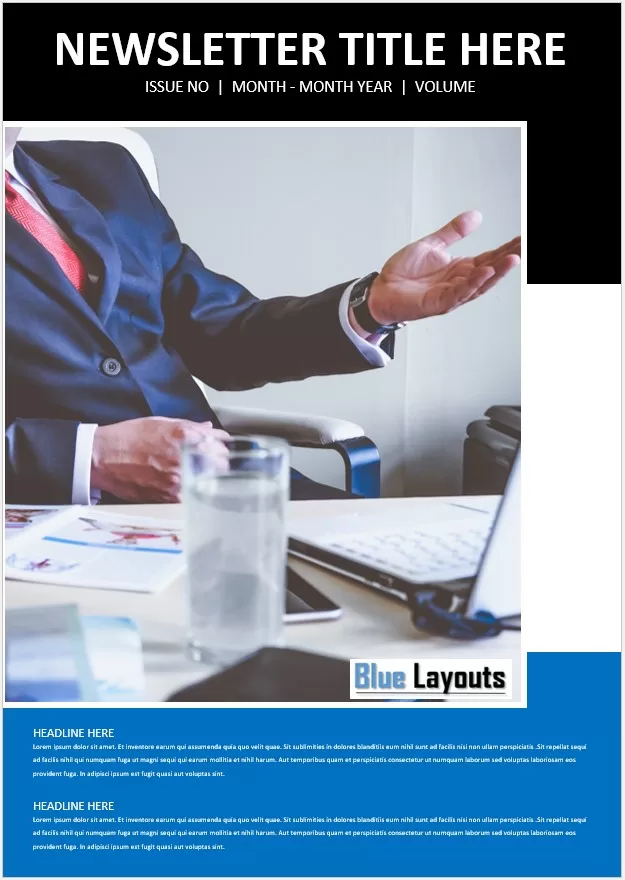
05. Business Feature Newsletter
A large business photograph occupies much of the page, with the title above and two short article sections below.
Useful for: An executive update, interview introduction or single-topic issue. Keep the copy focused so it fits the available space.
Format: Word (.docx), inside a ZIP file.
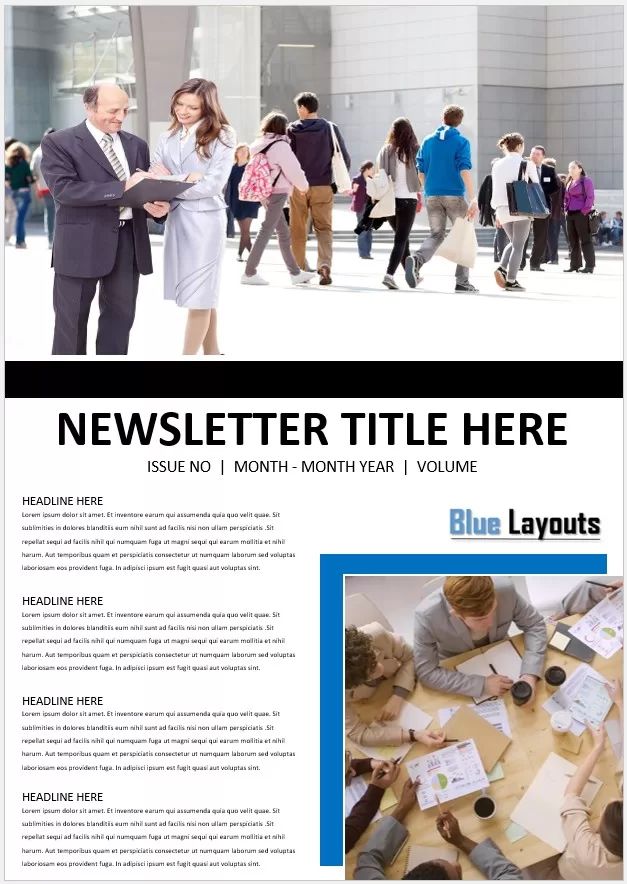
06. Team Update Newsletter with Two Photos
A full-width top photograph is paired with a smaller lower-right image and a left-side stack of short updates.
Useful for: Staff news, club activities or community highlights with several concise announcements and a supporting photo story.
Format: Word (.docx), inside a ZIP file.
Choose a Newsletter Layout That Fits Your Message
Start with the content you already have. Templates 01 and 02 offer space for a longer article alongside shorter items. Templates 03 and 06 suit several brief updates with photographs. Templates 04 and 05 give more space to a feature image, so they work best when you can keep the accompanying text short.
These layouts can be adapted for different audiences, but changing the headline alone is not enough. Replace the sample imagery, section titles, dates and placeholder paragraphs so the finished issue feels relevant to its readers.
If you need a folded handout introducing a service or organization, a tri-fold brochure template may fit that purpose better. A newsletter is more useful for recurring updates with a recognizable issue date and content structure.
What to Include in Your Newsletter
- Publication name: Use a consistent title readers can recognize.
- Issue date and number: Make it clear which edition they are reading.
- A lead story: Put the most useful development first and explain why it matters.
- Short updates: Group announcements under descriptive headings.
- Relevant photographs: Add captions when readers need help understanding an image.
- Upcoming dates: Include the time, location and any registration deadline.
- A next step: Tell readers how to register, reply, contribute or find more information.
- Contact details: Identify the publisher and provide a way to ask questions.
A simple company issue might contain a project milestone, a team spotlight, two operational updates and an upcoming event. A school or club issue could feature a recent activity, member achievements, important reminders and the next meeting date.
A Short Newsletter Content Outline
[Organization] Monthly Update — [Month Year]
Lead story: [What happened, why it matters and what comes next.]
People spotlight: [A specific contribution or achievement.]
Quick notices: [Two or three updates readers need now.]
Dates to remember: [Event, date, time and location.]
Get involved: [One clear action and contact method.]
Choose a publishing frequency you can maintain. A yearly planner can help you map issue dates around events, seasonal announcements and content deadlines.
How to Customize a Newsletter Template in Word
- Extract and open the document. Save a working copy with the issue date in its filename.
- Update the publication details. Replace the title, issue number, date range and volume where included.
- Replace the placeholder text. Work section by section. Pasting as plain text can help avoid importing unwanted formatting.
- Add your photographs. Where available, use Word’s Change Picture option to replace an image while retaining its position. Check the crop afterward.
- Apply consistent branding. Use a restrained set of fonts and colors. Match your organization name and contact details to your other documents, such as your letterhead.
- Check text fit and reading order. Shorten copy that overflows instead of squeezing every paragraph into a smaller font. Confirm which story readers should read first.
- Review every page. Check for leftover Latin text, sample headings, unintended blank pages and shifted images before exporting or printing.
If a text box is difficult to select, use Word’s Selection Pane to locate the object. Different fonts or another editing application can alter line breaks and positioning, so compare the result with the preview after making changes.
Printing and Sharing Your Newsletter
Match the document’s paper size to your printer settings and check the margins in Print Preview. Print one test copy at the intended size to confirm that the body text is readable. The blue and black backgrounds may use substantial ink; check a grayscale proof if you plan to distribute black-and-white copies.
For digital distribution, export a PDF and check that links work, images remain clear and the file is a reasonable size. A fixed-page PDF can require zooming on a phone. If your main channel is an email newsletter, adapt the content into a responsive email layout rather than pasting the Word page into the email body.
When the newsletter is part of a business campaign, include photography, design, printing and distribution expenses in your quarterly marketing budget. Keep those costs separate from the document’s content plan.
Frequently Asked Questions
All six verified ZIP downloads contain Word (.docx) documents. They include editable text and page-layout elements.
Yes. Replace the sample business content with your own stories, photographs, dates and contact details. Choose a layout based on the length of your articles and the number of images you have.
No. They are Word document layouts intended for printing or PDF sharing. They do not include responsive HTML email code, subscriber management or email campaign tracking.
Can I open them in Google Docs or another editor?
Other editors may import .docx files, but floating images, text boxes and fonts can shift. Review the whole document after importing; Microsoft Word is the most direct starting point for these files.
How can I stop text from overflowing?
Shorten the article, remove repeated points or move extra detail to a linked resource. If you add another page, check the flow and positioning of all text and images. Keep the body text comfortable to read.
Are PDF versions included?
The downloads contain Word documents. Export a PDF from your edited copy once you have checked the final layout.

