Create a clear organization badge with these eight free editable ID card templates for Word. The collection includes photo-card designs with name, role, organization, identification number, and date fields in different arrangements.
Choose a layout that fits the information your staff or visitors need to recognize. Replace the sample details and graphics, check the finished card size, and print a proof before preparing a batch.
Each ZIP archive contains a Word (.docx) document. The original design numbers are retained: 01–05, 08, 09, and 10. Extract your chosen file and save a working copy before making changes.
The templates provide visual badge layouts. Review the sample photographs, logos, dates, numbers, and barcode graphics as well as the visible text. Some decorative elements may be images rather than separately editable shapes.
01. Simple Photo ID with Teal Name Band
A light horizontal design with a teal patterned top, a photo area on the right, and a prominent name band along the bottom. Includes description and person-detail placeholders. Replace the generic headings with your organization name and the information needed for the badge.
A blue layout with name, designation, issue and expiry fields, a logo area, a photo placeholder, and a vertical barcode graphic. Choose it when the role and validity dates need to be visible together. Replace the barcode graphic if using a real scanning process.
A horizontal design with name and designation in the dark header, issue and expiry fields, a second name placeholder on an accent strip, a photo area, and a barcode graphic. Decide what the additional name strip represents and label it consistently.
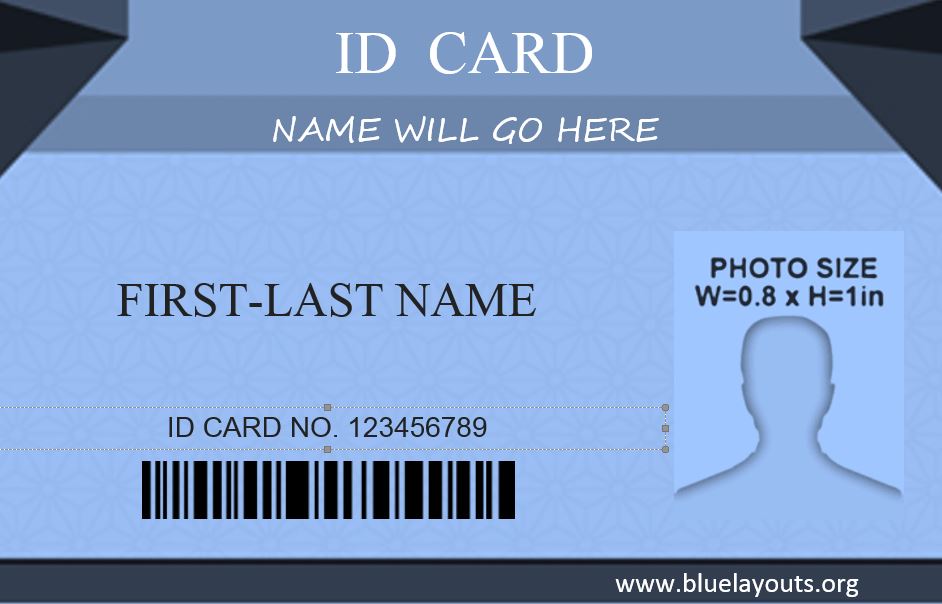
A pale-blue design with an ID CARD title, an organization-name area, the holder’s name, an ID-card number, photo space, and a barcode graphic. Replace the sample number with an identifier assigned through your organization’s process.
A white layout with blue geometric accents, a photo area on the left, company name, address and number fields, holder name and designation, and a barcode graphic. Keep contact details concise so the name and photo remain easy to see.
A blue geometric design with organization and contact information, name, designation, issue and expiry dates, a right-side photo area, and a barcode graphic along the bottom. Replace both example dates and check the intended validity period.
A blue design with a left-side photo, company name, holder name, designation, issue and expiry dates, contact details, and a barcode graphic. Choose it for a strong color treatment, then check contrast and readability on a physical proof.
A construction-themed design with a photo area, company-name and logo area, holder name, Foreman role text, joining-date field, and a cardholder line. Replace the sample role as needed and label the final line clearly if it is intended for a signature.
Visible issue and expiry dates: Compare 02, 03, 08, and 09.
Organization and contact information: Review 05, 08, and 09.
A construction-team layout: Start with 10 and adapt the role and date fields.
Choose according to the information and card holder you will use. A design can look clear on a full document page but become crowded when reduced to the finished badge size.
What Information Should an Organization ID Card Include?
Use only the fields needed for the badge’s purpose. A simple staff identification card might include:
Field
Purpose
What to check
Organization name or logo
Identifies the issuer.
Use the approved name and artwork.
Holder’s name
Identifies the person wearing the card.
Confirm spelling and use a consistent name format.
Photograph
Supports visual recognition.
Use a clear, current image of the intended holder.
Role or department
Provides useful organizational context.
Use a role that is accurate and understandable.
Internal identifier
Connects the badge with the issuer’s records.
Follow the organization’s numbering process.
Issue or expiry date
Shows the intended validity period.
Use a clear date format and review both dates.
Issuer contact
Provides an organizational contact where useful.
Use a monitored business contact.
A visible badge generally does not need a home address, birth date, or personal identification number unrelated to its purpose. Remove unnecessary fields rather than filling every available space.
How to Customize an ID Card in Word
Prepare the details. Confirm the holder’s name, role, internal number, dates, and approved photograph before editing.
Replace the sample text. Check every text box, including dates, contact fields, and secondary name labels. Change “Designation” to “Role” or “Department” if that better describes the information.
Insert your logo. Preserve its proportions and leave enough space around it to keep it recognizable.
Replace the photo placeholder. Use Word’s picture replacement and crop controls where available. Crop to fit rather than stretching the person’s face to match the frame.
Review the barcode. Remove it if it is unnecessary, or replace it with a code prepared for your organization’s supported scanning process.
Set the finished dimensions. Match the design to the actual holder, card stock, or printer specification. Keep important information clear of trim edges and any slot-punch area.
Proof and approve. Check the full document, print one card at its final size, and verify the details before producing more.
Word’s Selection Pane can help locate overlapping pictures and text boxes. When moving or resizing a design, check that the photograph, labels, and other elements stay aligned.
Sample Employee Badge Details
The following fictional example illustrates concise wording for an internal staff badge. Add only the fields your selected design and process need.
Example Services Alex Example Operations Coordinator Employee ID: EMP-1042 Issued: 1 November [Year] Valid until: 31 October [Following Year] Issuer contact: office@example.com
A role label identifies the person’s organizational role. Keep training completion and any task-specific authorization in the appropriate records. An employee training log can support a separate training history.
Replace and Test Barcode Graphics
Several previews include barcode artwork. Changing the printed name or ID number does not automatically update the data represented by that image.
If scanning is part of your process, generate a code for the intended record using a format supported by the receiving system. Replace the sample graphic, preserve its proportions and clear space, and test the final print with the actual scanner or application. Confirm that it retrieves the correct record.
The Word design supplies the badge layout. Any database connection, access-control function, or verification process must be configured through the organization’s own system.
Printing and Fitting the Card
Confirm dimensions: Use the size required by the selected holder or printing method rather than assuming the full-page preview is actual size.
Check scaling: Review print settings and measure a test. Automatic fit-to-page settings can alter the output.
Choose suitable stock: Use material supported by your printer, or provide the design to a printing service in its requested format.
Allow trimming space: Keep names, dates, photos, and codes away from cutting edges.
Test the holder: Confirm that its border or clip does not obscure important information.
Inspect the finished card: Review contrast, photo clarity, and any scanning function after printing or laminating.
For separate contact stationery, use the business card template and keep organization details consistent. A contact card and a staff badge can share branding while serving different purposes.
Keep Issued Badges Current
Maintain an internal record of card numbers, holders, issue dates, and replacements. Agree how staff report a lost card and how the issuer handles returned or expired cards. Update the underlying access system separately where one is used.
Document the relevant handling and access procedures alongside your security policies. Keep the badge’s wording consistent with the authority and process the organization actually uses.
Frequently Asked Questions
How many ID card templates are available?
Eight. The existing file numbers are 01–05, 08, 09, and 10. All eight downloads and their matching previews are listed above.
What file format is included?
Each ZIP contains a Word DOCX document. Extract the file and open it in Microsoft Word before editing.
Can I add a student or visitor label?
You can adapt the wording for your organization’s badge purpose. Replace the role label, issuer details, and validity information consistently, and review which fields are appropriate for the intended holders.
Are the photo-size labels the finished card dimensions?
No. They refer to photo areas shown in the sample designs. Confirm the overall card size separately for your holder or printing method.
Do the barcode images automatically identify the holder?
The graphics must be replaced and connected to the intended record through your own process. Test a final printed code with the system that will read it.
Can I export a PDF?
Yes. After editing and checking the Word layout, export a PDF and inspect it at the intended print size. The ZIP archives contain Word documents.