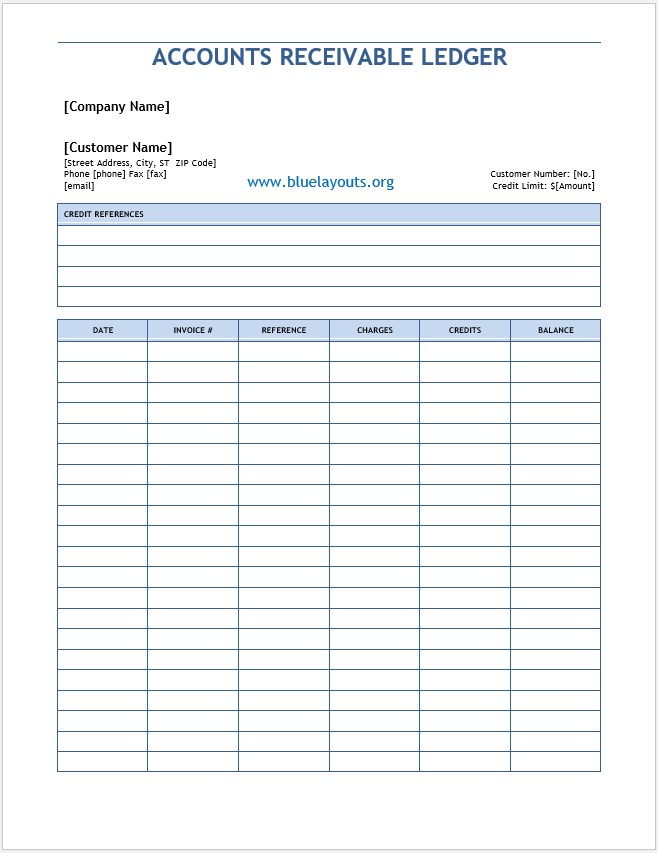
Keep a customer’s charges, payments, and adjustments together with this free accounts receivable ledger template for Word. The form includes company and customer information, a customer number, credit-limit and credit-reference areas, and a transaction table with Charges, Credits, and Balance columns.
Use a separate copy for each customer. This is a manually completed customer ledger, not an Excel workbook or an automatically generated accounts receivable aging report.
The supplied ledger does not calculate balances, age invoices, send payment reminders, or connect to a bank account. Enter and check each balance yourself.
Customer Ledger Preview
The original contains sample company and customer details. Replace all placeholders and state the currency before entering transactions.
What Does an Accounts Receivable Ledger Record?
A customer receivables ledger records amounts charged to a customer and the payments or adjustments applied to that account. Its running balance shows the remaining amount under the entries recorded.
The balance is only as current and complete as those entries. Keep invoices, payment records, and credit documents linked to the ledger so you can trace and verify the amounts.
Fields Included in This Template
Field
What to record
Company and customer details
The issuing company and the customer whose account this copy covers
Customer Number
A stable account identifier
Credit Limit
The approved limit, where your process uses one; this is not the current balance
Credit References
Relevant reference information, or an adapted notes area if references are not needed
Date
The transaction date under your recordkeeping convention
Invoice #
The relevant invoice identifier
Reference
A payment, credit note, or other supporting reference
Charges
Amounts increasing the customer’s recorded receivable
Credits
Payments or documented adjustments reducing the recorded receivable
Balance
The checked running balance after the entry
How to Complete the Customer Ledger
Create a customer-specific copy. Replace the sample company, customer, and contact details. Use the same customer number as your supporting records.
Define the reporting period and currency. Add these near the title if needed. Replace the sample dollar symbol when using another currency.
Establish the opening balance. If carrying a balance forward, enter a clearly labeled brought-forward row and retain the supporting detail.
Record charges. Enter the transaction date, invoice number, and amount charged.
Record payments and credits. Use separate dated entries with references identifying what was received or adjusted and how it was applied.
Calculate the new balance. Add charges to the previous balance and subtract credits.
Reconcile the account. Compare entries with invoices, receipts, credit notes, and your main accounting records before relying on the balance.
Browse our invoice templates for separate billing layouts. An invoice records the charge; this ledger organizes the subsequent account activity.
Running Balance Example
For this example, the account starts at zero and all amounts use the same currency:
Entry
Charges
Credits
Balance
Invoice INV-101
500.00
—
500.00
Payment applied to INV-101
—
200.00
300.00
Documented credit note against INV-101
—
50.00
250.00
Invoice INV-102
150.00
—
400.00
New balance = previous balance + charges − credits. The final example balance is 400.00. Payments and credit notes both reduce the balance here, but they are different transactions and need distinct references.
Use a cash receipt template when acknowledging money received. Do not label a credit note as a cash payment or assume a recorded payment proves which invoice it settled without checking the allocation.
Customer Ledger vs. Accounts Receivable Aging Report
This ledger shows account activity in sequence. An aging report groups unpaid invoice amounts by how overdue they are at a specified reporting date.
The original file has no dedicated due-date or aging columns. A running account balance alone cannot tell you how much is current, 1–30 days overdue, or older. For an aging view, retain invoice-level outstanding amounts and due dates, and define the aging basis and reporting date.
Do not subtract a payment from several invoices at once. Keep a clear allocation record, especially where a customer makes a partial payment or pays multiple invoices together.
Useful Customizations
Description: briefly identify the transaction type or purpose.
Due date: record the invoice deadline without confusing it with the transaction date.
Payment allocation: identify the invoice or invoices to which a payment applies.
Review date: show when the account was last reconciled.
Continuation reference: connect additional pages to the same customer and period.
These fields are not included in the original. If you need frequent calculations or many customers, move the workflow to a tested spreadsheet or accounting system rather than assuming the Word layout provides automation.
Keep Receivables Separate from Cash Forecasts
An unpaid customer balance is not cash already received. Use the cash budget worksheet for separate cash planning, with clearly stated collection assumptions.
Keep an editable master, retain reviewed copies, and check page breaks when adding rows. Repeat customer identifiers and table headings on continuation pages, and restrict access to customer contact and credit information.
Frequently Asked Questions
Is this an Excel accounts receivable ledger?
No. The actual download is a Word .docx file. It does not have automatic balance formulas.
Can I use one copy for several customers?
The layout is designed around one customer’s details and balance. Use separate customer records, then prepare a separate summary if needed.
Does it calculate overdue balances?
No. The original has no aging logic or due-date field. An overdue analysis needs additional invoice-level data.
How do I record a partial payment?
Enter the amount received as a credit, retain its payment reference and invoice allocation, and recalculate the balance. Do not mark the full invoice settled if an amount remains.
Can I print it or save a PDF?
Yes. Review the completed layout in Word before printing or exporting. Check that all rows, references, and continuation pages are included.


Pingback: 6 Free Telephone Sales Order Forms & Templates for Word
Pingback: 6 Free Bill Receipt Templates for Word (Editable Downloads)
Pingback: 6 Free Payment Reminder Letter & Email Templates for Word
Pingback: Hourly Invoice Template: Billing Example & Invoice Maker
Pingback: 11 Free Bank Statement Templates & Samples for Word